
The NEW Parent and Student Dashboard is designed to make it easier to view student information in one place. It provides quick access to student progress for any class and any grading period.
Parents and students can easily see assignments, grades, attendance, and important school announcements all from one dashboard.
Streamlined Menus
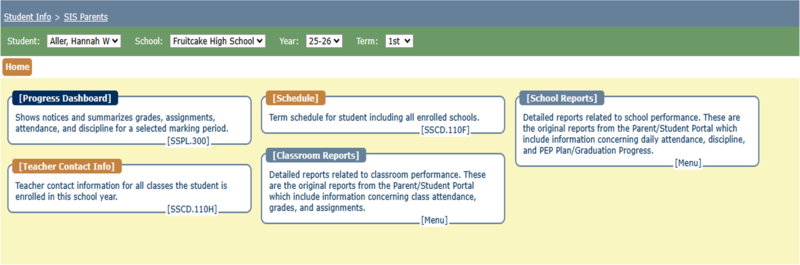
The Progress Dashboard is a newly designed application to view student progress quickly for any class in any grading period. Quickly see assignments, grades, attendance, and important school announcements all in one place.
All original reports are still available in the Classroom and School Reports menus, including PEP Plans, grade summaries at a glance, and Graduation Progress.
Teacher emails and student schedules have been left as part of the streamlined dashboard for easy access.
Progress Dashboard Navigation
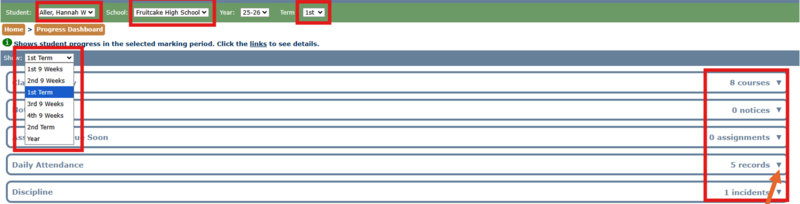
Select the student, school, and term (semester) as before. Then select the grading period/term from the drop-down menu to see data from that specific time span. Arrows expand/collapse each section on demand.
All underlined data can be clicked to show more details.
Clicking a header will show you the information for all classes.
Clicking a data point for a specific class will show you details for that class only.
Underlined Items (Click for Details)
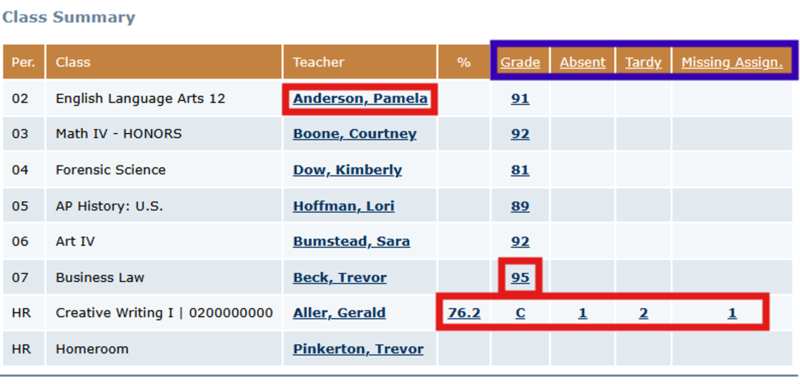
Anything underlined can be clicked for more information.
A teacher’s name will open a link to email them.
A grade will drill into all assignments for the selected grading period for that class.
A percentage is displayed for all classes that are letter grades.
Absences/tardies will show the dates the student missed.
Missing assignments will show all assignments marked as missing by the teacher.
Assignments View
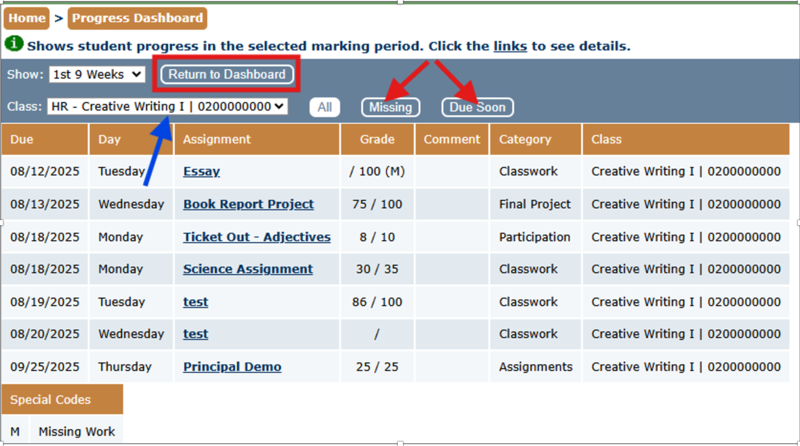
When drilled into assignments, you can easily navigate between other classes and terms, missing assignments only, assignments due soon, or all assignments by selecting the appropriate option.
Click “Return to Dashboard” to return to the summary information again.
Daily Attendance and Discipline
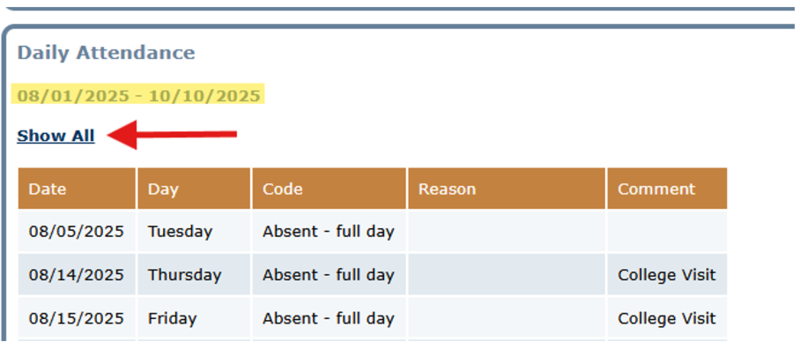
Daily Attendance and Discipline will default to show events from the grading period selected by the user. To see daily attendance or discipline incidents for the full year, click “Show All.”
This article is part of our Parent Guide Series. You can read the full collection of guides here: Parent Guide Series.